Implementing The Parser
Now it is time to define how the parser works.
Step 1. Click on the parser.p4 file to display the content of the file.

Figure 16. Inspecting the parser.p4 file.
We can see that the headers.p4 file that we just filled out is included here in the parser. The file also includes a starter code that declares a parser named MyParser. Note how the headers and the metadata structs that we defined previously are passed as parameters to the parser.
Step 2. Add the start state inside the parser by inserting the following code.:
state start {
    transition parse_ethernet;
}

Figure 17. Adding start state to the parser.p4 file.
The start state is the state where the parser begins parsing the packet. Here we are transitioning unconditionally to the parse_ethernet state.
Step 3. Add the parse_ethernet state inside the parser by inserting the following code.:
state parse_ethernet {
    packet.extract(hdr.ethernet);
    transition select(hdr.ethernet.etherType) {
        TYPE_IPV4: parse_ipv4;
        default: accept;
    }
}

Figure 18. Adding parse_ethernet state to the parser.p4 file.
The parse_ethernet state extracts the Ethernet header and checks for the value of the header field
etherType. Note how we reference a header field by specifying the header to which that field belongs
(i.e., hdr.ethernet.etherType). If the value of etherType is TYPE_IPV4 (which corresponds to 0x0800
as defined previously), the parser transitions to the parse_ipv4 state. Otherwise, the execution of
the parser terminates.
Step 4. Add the parse_ipv4 state inside the parser by inserting the following code.:
state parse_ipv4 {
    packet.extract(hdr.ipv4);
    transition select(hdr.ipv4.protocol) {
        TYPE_TCP: parse_tcp;
        default: accept;
    }
}

Figure 19. Adding parse_ipv4 state to the parser.p4 file.
The parse_ipv4 state extracts the IPv4 header and checks for the value of the header field protocol. Note
how we reference a header field by specifying the header to which that field belongs (i.e., hdr.ipv4.protocol).
If the value of protocol is TYPE_TCP (which corresponds to 6 as defined previously), the parser transitions
to the parse_tcp state. Otherwise, the execution of the parser terminates.
Step 5. Add the parse_tcp state inside the parser by inserting the following code.:
state parse_tcp {
    packet.extract(hdr.tcp);
    transition accept;
}

Figure 20. Adding parse_tcp state to the parser.p4 file.
The parse_tcp state extracts the TCP header and terminates the execution of the parser.
Step 6. Save the changes to the file by pressing Ctrl + s.
Compiling the P4 program
Step 1. Open a new terminal in VS Code by clicking on Terminal in the menu bar and then New Terminal in the drop-down menu.

Figure 21. Opening a new VS Code terminal.
Step 2. To compile the P4 program, issue the following command in the terminal panel inside VS Code.:
p4c-dpdk --arch pna main.p4 -o lab3.spec
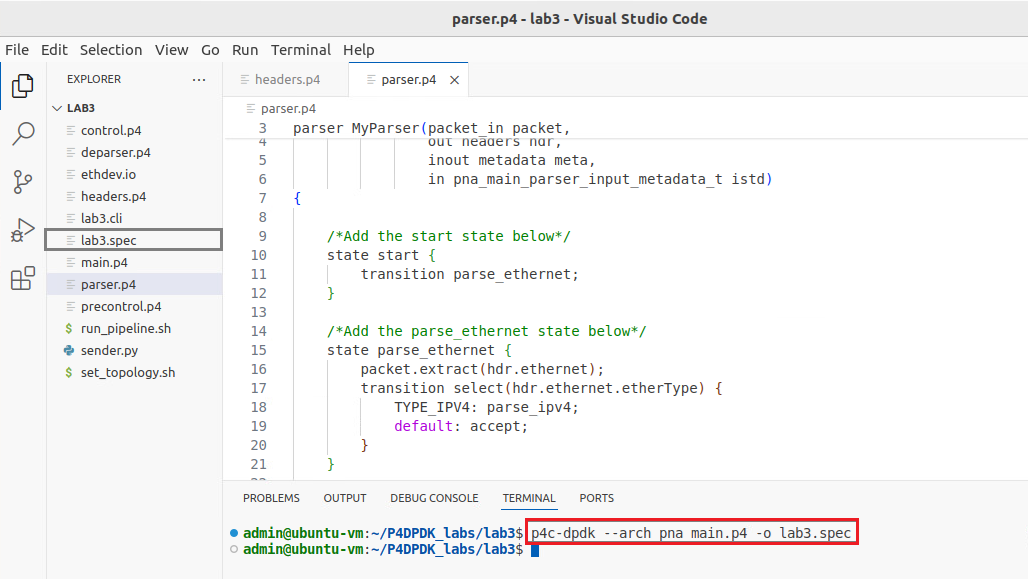
Figure 22. Compiling the P4 program using the VS Code terminal.
The command above invokes the p4c-dpdk compiler to compile the lab3.p4 program and generates the lab3.spec file (highlighted in the grey box) which is a specification file needed to run the pipeline.